

🔁 Manually Convert Prospect → Opportunity
- Step 1: Navigate to the Prospect Module.
- This module contains all your potential clients who are not yet qualified as opportunities.
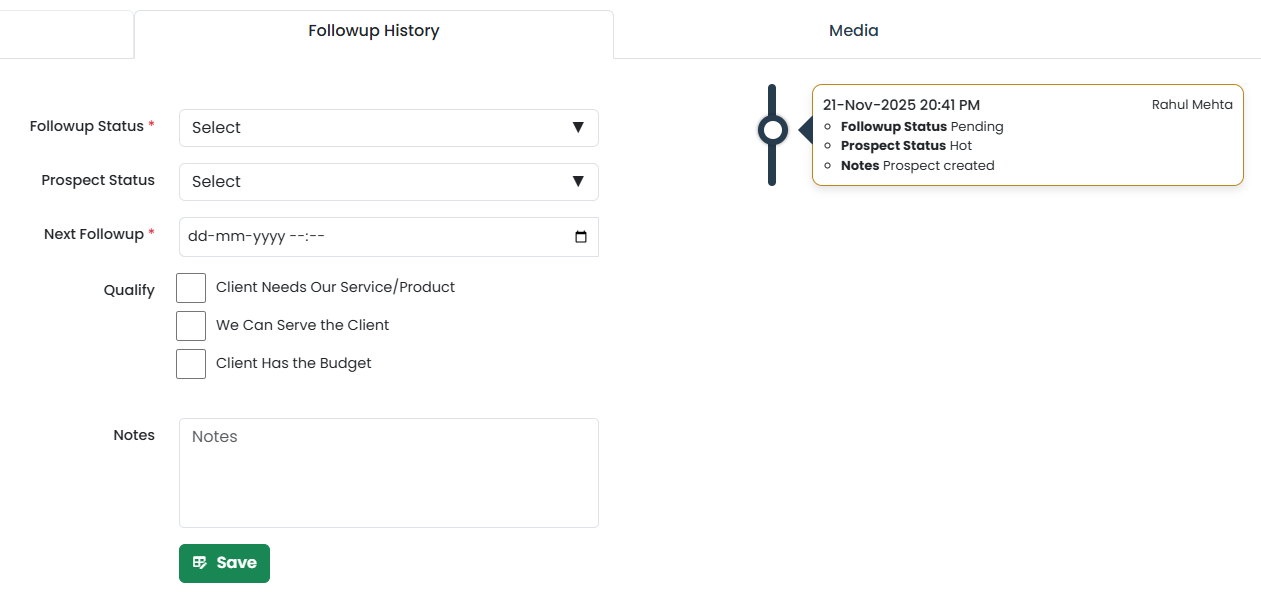
- Step 2: Select a specific prospect and open the Follow-up History tab.
- This tab logs all interactions and follow-up activities with the prospect.
- Step 3: In the Follow-up History Form, you will find all the following fields within a single form:
- Follow-up Status (dropdown): Used to indicate the result or outcome of the current follow-up (e.g., Contacted, No Response, Qualifying).
- Prospect Type (dropdown): Used to show the current standing of the prospect (Hot, Warm, Cold, DND).
- Next Follow-up Date: Specifies the date when the next follow-up is planned with the prospect.
- Qualify Section (scroll down within the same form): This section is critical in determining whether the prospect should be converted into an opportunity.
✅ Qualification Criteria (Inside the Follow-up History Form)
Within the Qualify Section, there are three checkboxes that determine whether the prospect is eligible to be converted into an opportunity:
- Client needs our service/product: Indicates that the prospect has expressed a need or interest in what the business offers.
- We can serve the client: Confirms that the company has the capability and capacity to meet the prospect’s requirements.
- Client has the budget: Ensures that the prospect has sufficient budget or purchasing power to proceed.
🔁 Prospect → Opportunity Conversion Logic
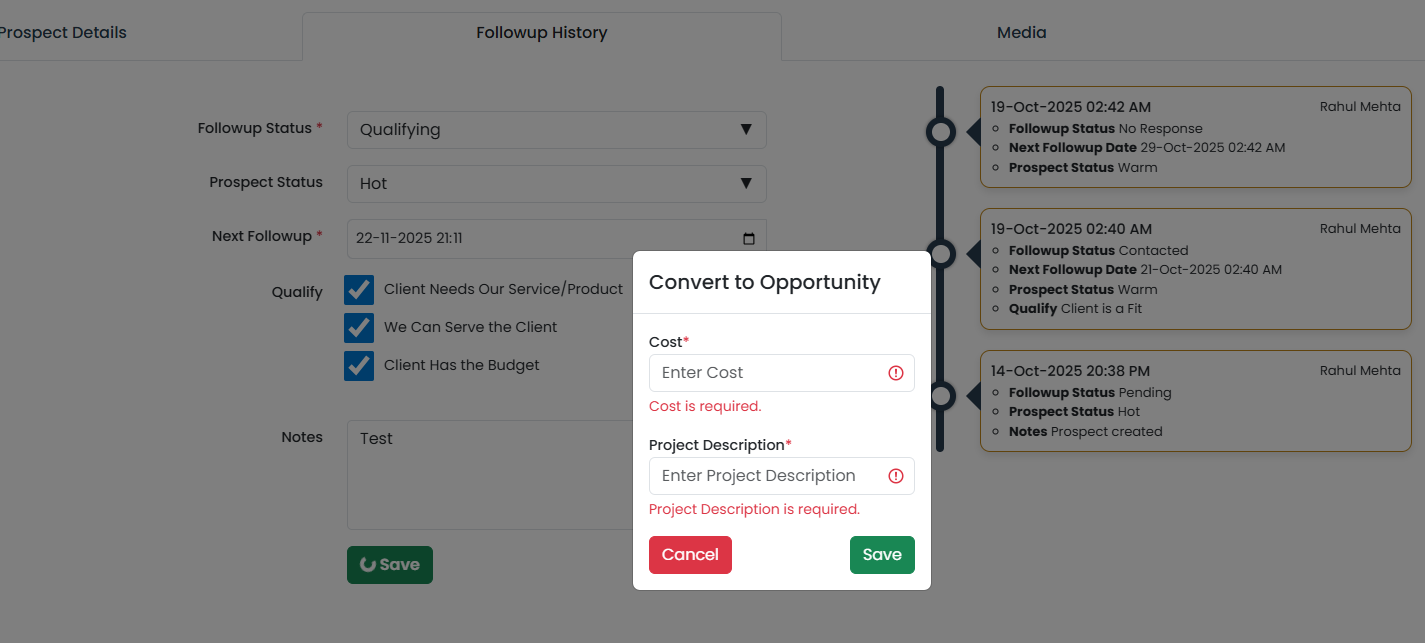
- When all three checkboxes are selected, it signifies that the prospect is fully qualified.
- Upon clicking Save on the Follow-up History Form, the system triggers a confirmation popup (the opportunity-conversion dialog) with the message: “This prospect will be converted to an opportunity.” You will be asked to enter:
- Estimated Cost
- Project Description
- If you enter both values and click OK, the system will:
- ✅ Auto-convert the prospect into an Opportunity (default stage: Requirement Gathering).
- 🔁 Move the record from the Prospect Module to the Opportunity Module with name, contact, and company pre-filled from the prospect.
- ❌ Remove the record from the Prospect list and from the Followups queue (it is now an active sales opportunity).
⚠️ Important Notes
- You cannot convert a prospect to an opportunity until you enter a valid Estimated Cost and Project Description.
- Keep your data updated to ensure accurate tracking in the sales pipeline.
- Once a Prospect is converted, it cannot be converted again.
🔁 Bulk Convert Prospect → Opportunity
📌 Purpose: When a Prospect becomes a confirmed business lead, you can convert it into an Opportunity to start tracking the sales process. Bulk conversion lets you push multiple prospects through at once.
🪄 Steps to Convert
- Open Prospect List
- Go to CRM → Prospects.
- You will see a list of all your existing prospects.
- Select Prospect(s)
- Tick the checkbox next to one or more prospects you want to convert.
- Convert to Opportunity
- Click the Actions menu at the top of the grid and choose Convert to Opportunity.
- System Creates Opportunity Records
- The system creates an Opportunity record for each selected prospect, pre-filling name, contact, and company from the prospect data.
- Each new opportunity starts in the Requirement Gathering stage.
📋 After Bulk Conversion
- Converted records are visible under CRM → Opportunities.
- Newly converted opportunities appear in the Requirement Gathering column on the Kanban view.
- You should update the following fields on each opportunity after conversion:
- 💰 Estimated Cost
- 🧾 Project Description
- 🎯 Stage Progress