

An Opportunity is a qualified deal in active sales pursuit. Once a Prospect passes the three qualification checks (or you create one directly), it becomes an Opportunity and moves through the sales pipeline.
🚀 Key Features and Automation
- Auto-fill on Conversion: Opportunities created by converting leads/prospects come with pre-filled data (name, contact, company) for your review.
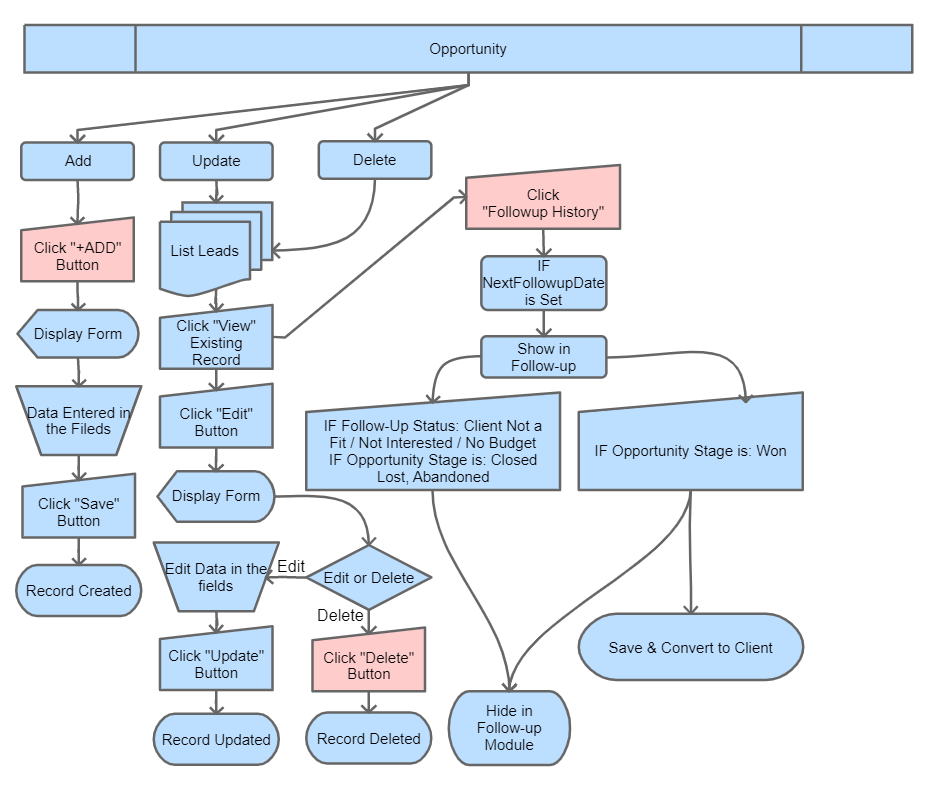
- Automatic Client Creation: When the Opportunity Stage is set to “Won”, a Client record is created automatically in the Clients Module and linked to this opportunity. The opportunity itself stays in the Won state for reporting and history; future invoices and projects live under the new Client record.
- Follow-Up History Tracking:
- Changes in Prospect or Opportunity Stages create timestamped records in the History tab.
- Updating Follow-up Status also logs an entry.
- These changes are visible in the Follow-Up Module and on the Dashboard for easy tracking.
📈 Monitoring Opportunities
- Opportunities Section: View, filter, and manage opportunities by stages and owners.
- Follow-Up Module: Track scheduled and completed follow-ups for every opportunity.
- Dashboard: Get an overview of opportunity statuses and pipeline progress (Sales Funnel widget shows counts and expected revenue per stage).
🏁 What Happens After the “WON” Stage?
If the Opportunity Stage is updated to “WON”:
- The system automatically creates a Client record in the Billing module from the opportunity’s company and contact details.
- The Opportunity is preserved (with its full history) so you can still report on it.
- All future invoices, projects, and statements are tracked under the new Client profile.
📊 Kanban View for Opportunity Stages
DaaI Business Suite displays Opportunities in a Kanban layout with the following active stages:
- Requirement Gathering (default stage for newly created opportunities)
- Preparing Quote
- Quote Submitted
- Negotiation
Terminal stages (not on the active Kanban):
- Won — deal closed successfully (auto-creates a Client).
- Closed Lost — deal lost; record kept for reporting.
- Abandoned — gone cold without an explicit decline.
You can drag and drop opportunities across stages to update their progress. Each Kanban column also has a per-column urgency filter (Delayed / Today / Upcoming / Future / Stalled) so you can focus on what’s due.
💡 Pro Tips
- Fill all mandatory fields (marked with *) to save successfully.
- Regularly update Follow-up Status and Opportunity Stage for pipeline accuracy.
- Selecting “Won” automatically creates a Client record — confirm contact and tax details before you do.
- Attach important Documents directly to opportunity records using the upload feature.
This overview gives a clear stepwise process and explains the key automation and tracking features within the Opportunity Module of DaaI Business Suite.