

The Follow-Up tab on a Prospect helps salespeople track and manage all actions taken on that prospect. It is divided into two sections.
🔹 1. Follow-Up Form (Left Side)
This is where you log every follow-up activity. It contains:
- Follow-Up Status
Choose the latest outcome of your follow-up:
Pending,No Response,Contacted,Qualifying,Not Interested,Client Not a Fit,No Budget.
(This is about the result of your last interaction — not the overall lead status.) - Prospect Stage
Choose how promising this lead looks:Hot,Warm,Cold,DND.❗ If you select
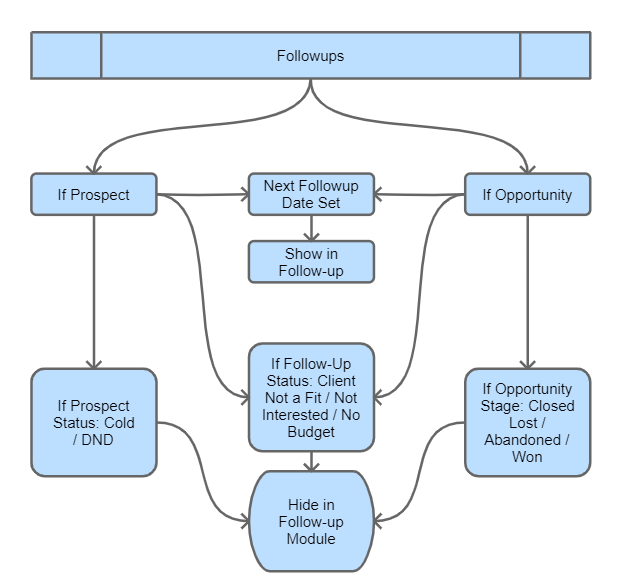
ColdorDND, this prospect will stop showing in future follow-up lists. - Next Follow-Up Date
Schedules the next planned interaction. This date drives the Followups queue. - Qualify Section
Three checkboxes to judge if the prospect is qualified:- Client Needs Our Service/Product
- We Can Serve the Client
- Client Has the Budget
✅ If all three are selected, on Save the system will show a confirmation popup, ask for Estimated Cost and Project Description, and then automatically convert this prospect into an Opportunity.
- Notes
Free text area to write a meeting summary, special instructions, or future reminders. - Save Button
Always click this after filling the form to log the update.
🔹 2. Follow-Up History Timeline (Right Side)
- Shows a vertical timeline of all previous follow-ups.
- For each entry, you can see:
- Date and Time (recorded in dd-MMM-yyyy HH:mm format)
- Salesperson who added it
- Follow-Up Status
- Prospect Stage
- Any qualification boxes selected
- Notes written
This section gives a quick summary of all past interactions, helping any salesperson understand:
- What actions were taken?
- What was the client’s response?
- What should be the next move?
🛑 Disqualification Logic
If any of the following is selected:
- Follow-Up Status:
Client Not a Fit,Not Interested,No Budget - Prospect Stage:
Cold,DND
➡️ The system will mark the prospect as disqualified, and it will not appear again in follow-up reminders or on the Kanban board.
📌 Kanban View Sync
The Follow-Up Status selected here also determines where the prospect appears in the Kanban View. For example:
Pending→ First columnNo Response→ Second columnContacted→ Third columnQualifying→ Fourth column
This follow-up tab ensures every interaction is logged, helps you qualify leads, and keeps your pipeline clean and updated.