

Here is the complete write-up for the Follow-Up History in the Opportunity Module of DaaI Business Suite. The Follow-Up History section in the Opportunity Module is designed to track all sales interactions, updates, and follow-up activities associated with a specific opportunity. This ensures structured communication and transparent progress throughout the sales lifecycle.
🔹 Purpose
This section helps sales representatives:
- Record each follow-up activity.
- Update the opportunity’s progress.
- Schedule and manage future follow-ups.
- Maintain a timeline of interactions for internal reference.
📝 Fields and Functional Elements
1. Follow-Up Status
This dropdown indicates the current response status from the client. Available options:
- Pending – Awaiting response or action.
- No Response – Client hasn’t replied after follow-up.
- Contacted – Client has been contacted.
- Qualifying – Still evaluating fit or potential.
- Not Interested – Client explicitly declined.
- Client Not a Fit – Lead disqualified due to mismatch.
- No Budget – Client lacks financial resources for now.
✅ Each update in Follow-Up Status gets timestamped and recorded in the History timeline.
2. Opportunity Stage
This dropdown defines where the opportunity stands in the sales pipeline. Options include:
- Educating Customer – Explaining the value proposition.
- Requirement Gathering – Collecting project or service needs.
- Preparing Quote – Working on quotation or proposal.
- Quote Submitted – Proposal has been shared.
- Negotiation – Pricing or scope discussions are ongoing.
- Closed Lost – Opportunity not won.
- Abandoned – Dropped due to inactivity or disinterest.
- Won – Opportunity successfully closed; system will create a Client record automatically.
🔁 Each change in Opportunity Stage is recorded with date and time in the History timeline and surfaces on the Dashboard’s Sales Funnel chart.
3. Next Follow-Up Date
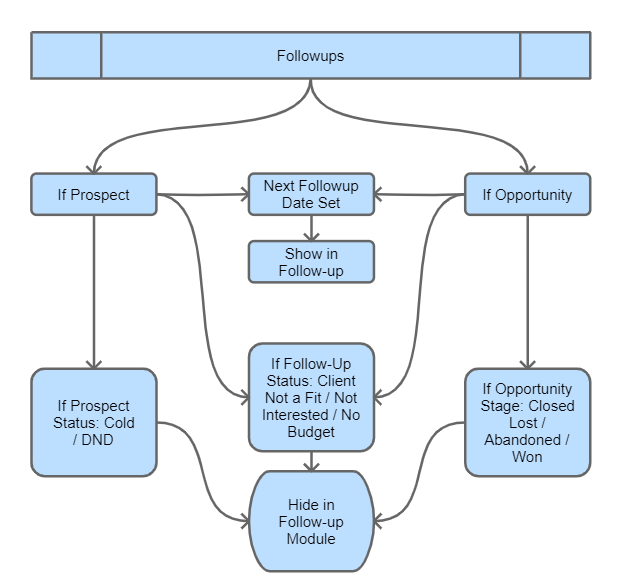
Used to define when the next follow-up should happen. This helps sales reps stay organized and ensures timely engagement. This date drives the central Followups queue.
4. Notes / Comments
Free-text area to capture any details of the interaction — call summary, meeting outcome, objections raised, follow-up commitments, etc.
5. Save Button
Once all required fields are updated, clicking Save:
- Stores the follow-up entry.
- Triggers background logging (for Follow-Up Status and Opportunity Stage changes).
- Updates the system timeline for tracking.
📊 System Behavior
- All changes are auto-logged with date/time in the History timeline (recorded in dd-MMM-yyyy HH:mm format).
- Follow-up records also show up in the Followup Module and are visible on the Dashboard.
- If Opportunity Stage is marked as “Won”, the system automatically:
- Creates a Client record in Billing > Clients with the opportunity’s company and contact details pre-populated.
- Preserves the opportunity (with all linked information) for future reporting.
- If Stage is set to Closed Lost or Abandoned, the opportunity disappears from the central Followups queue.
✅ Best Practices
- Always update Follow-Up Status and Opportunity Stage after any client interaction.
- Set an accurate Next Follow-Up Date to avoid missed communication.
- Use the Notes field for meaningful context — this helps your team stay aligned.
- Keep Opportunity Stage up-to-date for accurate pipeline visibility and reporting.