

Once you’ve added a candidate profile, you can easily track their progress and update their status as they move through the hiring pipeline.
🔹 Step 1: Open the Candidate Record
- Go to HRM > Hiring.
- You will see the list of all candidates.
- Use search or filters to find the specific candidate.
- Click on the record to open the detailed profile view.
If you want to create a new record follow this article → Hiring Module (Recruitment)
🔹 Step 2: Review Existing Details
- On the detail page, you will see all personal, professional, skill, and evaluation data.
- Confirm the current Decision status and any previous notes.
- Open the Change Log tab on the candidate aside to see who changed the status (and when), so you have a full audit trail of every decision update.
🔹 Step 3: Evaluate Skills of the Candidate
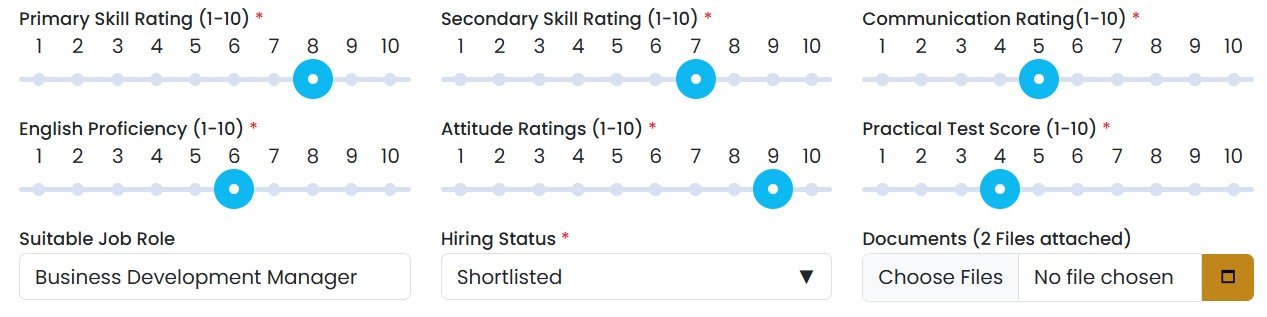
You can rate each area using sliders with a numeric scale from 0 to 10.
- Primary Skill Rating: Proficiency in the primary skill area.
- Secondary Skill Rating: Proficiency in the secondary skill.
- Other Skill Rating: If specified.
- English Rating: Written and spoken English abilities.
- Communication Rating: Clarity and effectiveness of communication.
- Attitude Rating: Professional attitude and mindset.
- Practical Test Rating: Score or impression from any practical assessment.
🔹 Step 4: Update Status and Feedback
- Click the Edit button at the top of the aside.
- Scroll to the Decision field.
- From the dropdown, select the appropriate status:
- Shortlisted
- Interviewed
- Offer
- Background Check
- Onboarding
- Rejected, etc.
- Optionally update:
- Suitable Profile (Yes/No)
- Notes field with new observations.
- Skill Ratings (if you want to adjust them after interviews).
🔹 Step 5: Save Updates
- Click Update to save changes.
- The profile will now reflect the latest status and notes.
- Each save writes a new entry to the Change Log for that candidate.
🔹 Step 6: Monitor Candidate Pipeline
- Back in the Hiring list view, you can:
- Use the Decision filter to see candidates at each stage.
- Sort by Applied Position, Date, or Status.
- Quickly identify who needs follow-up or next steps.
✅ Tip: You can customize the status options (Hiring Decisions) under Settings > Dropdown Settings — filter for the Hiring category — so the pipeline matches exactly how your recruitment workflow operates.