

🎯 What this guide covers
This guide explains step by step how to create, evaluate, and store a candidate’s profile in the Hiring Module.
🔹 Step 1: Access the Hiring Module
📍 Screen: Log in → from the main menu go to HRM > Hiring → click the green Add button (top-right). The Add Hiring aside opens on the right — that aside is the screen where you fill in the candidate’s details.
- Log in to DaaiSuite Business Suite.
- Go to HRM > Hiring in the main menu.
- Click the ➕ Add button to open the candidate form.
🔹 Step 2: Fill Candidate Personal and Professional Details
The form contains multiple grouped sections. Most of the form is required — nearly every field below is mandatory before you can save. Fields marked with an asterisk (*) are mandatory.
Personal Details
| Field | Description |
|---|---|
| First Name * | Candidate’s first name. |
| Last Name * | Candidate’s last name. |
| Phone Number * | Primary contact number (with country code). |
| Alternate Phone | Secondary contact number. |
| Email * | Primary email address. |
| Alternate Email | Secondary email. |
| Address * | Full residential address. |
| Country / State / City | Cascading dropdown — pick Country first, then State, then City. |
Professional Details
| Field | Description |
|---|---|
| Applied Position * | Job role the candidate is applying for. |
| Current Salary * | Existing salary (numeric, full precision; the display rounds to 2 decimals). |
| Expected Salary * | Expected compensation. |
| Notice Period * | Notice period in months. |
| Total Experience * | Total years of experience. |
| Current Designation * | Present job title. |
| Current Employer * | Current employer’s name. |
| Reason for Leaving | Reason for leaving the current role. |
| Interview Date * | Scheduled interview date. |
Skills
| Field | Description |
|---|---|
| Primary Skill * | Main skill (e.g., JavaScript). |
| Primary Skill Experience | Years & months of experience in primary skill. |
| Secondary Skill * | Second skill (e.g., Angular). |
| Secondary Skill Experience | Years & months in secondary skill. |
| Other Skill | Additional skill (optional). |
| Other Skill Experience | Years & months in other skill. |
🔹 Step 3: Skill Evaluation
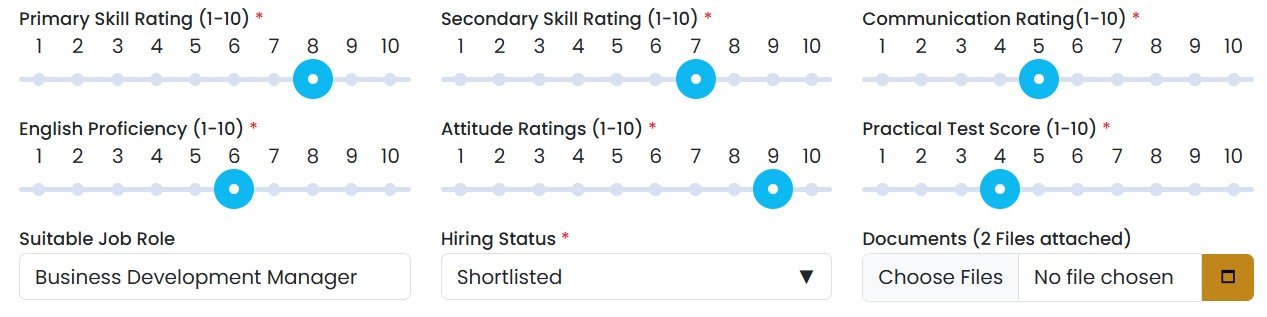
Skill evaluation helps you consistently assess the candidate’s capabilities. Each rating is a 0–10 slider:
- Primary Skill Rating
- Secondary Skill Rating
- Other Skill Rating
- English Rating
- Communication Rating
- Attitude Rating
- Practical Test Rating
👉 These evaluations can be added later by editing the candidate record if you don’t have all ratings during initial entry.
🔹 Step 4: Make or Update a Decision & Add Notes
| Field | Options / Notes |
|---|---|
| Suitable Profile | Yes / No — whether the candidate matches the job profile. |
| Decision * | Dropdown: Hired, Rejected, Shortlisted, Offer, Onboarding, Training, etc. (the list is editable from Settings > Dropdown Settings if your tenant uses different stages). |
| Notes | Additional comments or observations. |
🔹 Step 5: Attach Documents
- Use the Upload Documents option to attach the CV, test scores, reference letters, and any other supporting files.
- Documents are stored under your tenant’s secure storage area — they are not visible to other tenants.
🔹 Step 6: Save or Close
- Save to store the candidate profile.
- Close to exit without saving.
📝 Changelog: Every edit you make to a candidate is captured at Save time (not on every keystroke), so partial edits are not stored. The change history is available from the Logs tab of the candidate aside.
📥 Bulk Import Candidates
📍 Screen: HRM > Hiring → click the Actions dropdown (top-right) → Import. The import dialog opens.
If you need to onboard a list of candidates from a spreadsheet, use the bulk import flow:
- Click Download Sample File — the sample lists every valid value for dropdown columns (Decision, Applied Position, Country, etc.) joined by ” / “, so you know exactly what to type.
- Fill the file with candidate data.
- Click Choose File and select your filled spreadsheet.
- Click Validate & Import. Invalid or duplicate rows are flagged in the result file and are not imported — fix the errors and re-upload.
📌 Important Notes
- ✅ Fields marked with an asterisk (*) are mandatory — note that most of the form is required, so plan to have the candidate’s details on hand before you start.
- ✅ Candidate records can be searched and filtered at any time from the Hiring list.
- ✅ You can edit or update skill ratings, decisions, and other details later — every change is tracked.
- ✅ Use the Attach Documents option to upload supporting files (CVs, test scores, references).
- ✅ All entries and ratings should be carefully reviewed before saving.
- ✅ Next: Track Interview Progress & Status — and what each status means.